
Customize your Documentation
Table of Contents
The main advantage WP Help Scout Docs offers over Help Scout Docs and other support SaaS solutions is it’s endless options for customization.
By default, WP Help Scout Docs uses your theme’s archive template to display articles in a certain category, and the post template to display articles. This should (in most cases) give your documentation the same look and feel of the rest of your website.
Should you still want to customize the look and feel, WP Help Scout Docs offers several ways to customize it.
Gutenberg Block
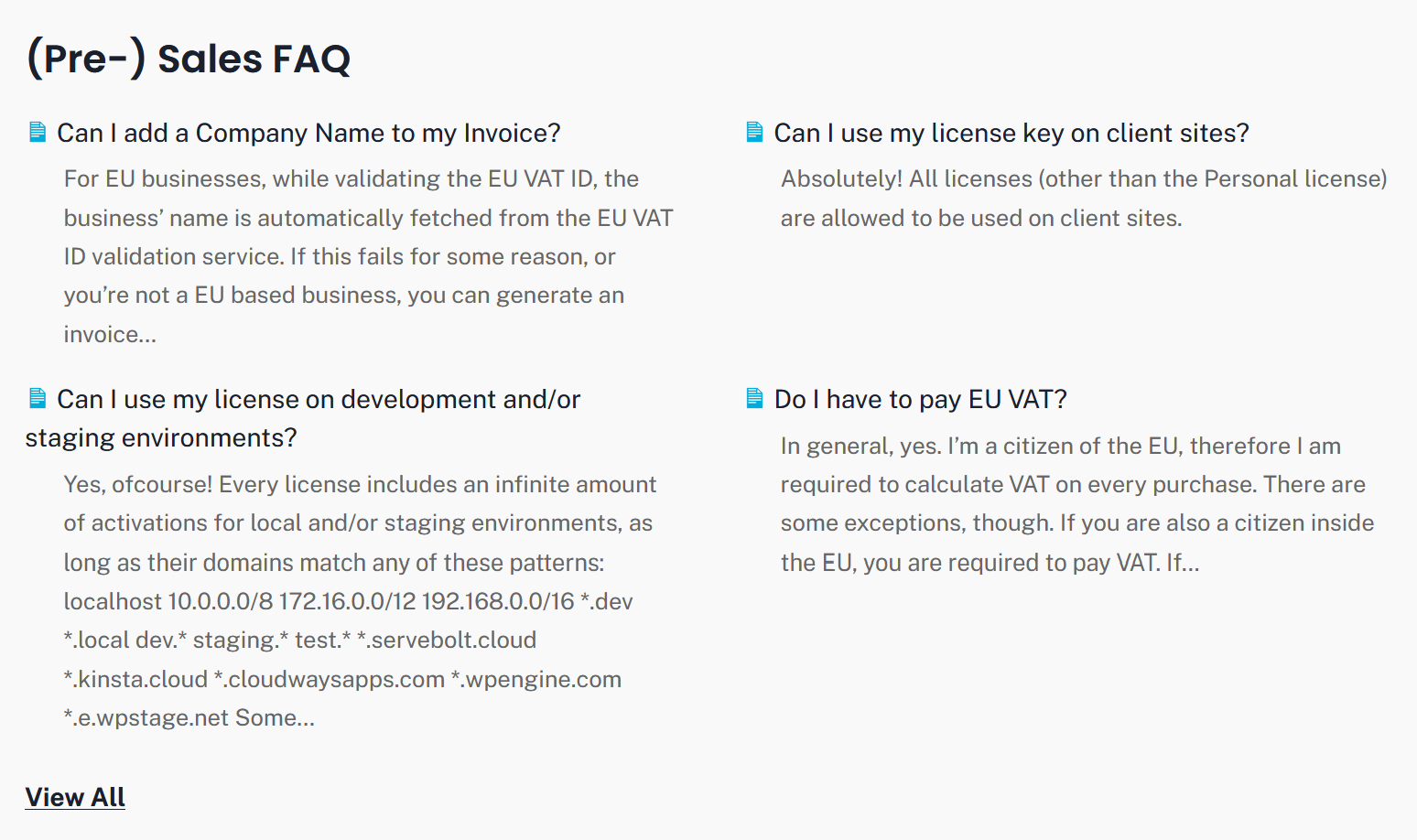
The Gutenberg Block, called Help Scout Docs Categories allows you to easily customize the look and feel of your Help Scout Docs base page:
- Choose between a List or Grid layout,
- Display your categories in 1 to 6 columns.
But that’s not all! When Grid is selected, you have several ways to further customize the display of your Help Scout Docs:
- Show (a limited or full) list of Articles per Category and, optionally, divide them over 1 to 4 columns,
- Show an excerpt of each article (which is great for a top 3 most asked questions setup),
- Display a View All link,
- Sort (ascending and descending) by Name, Date and Menu Order.
And all other default Block options (e.g. Typography, Padding, Margin) are available as well, if provided by your theme.
Elementor Widget
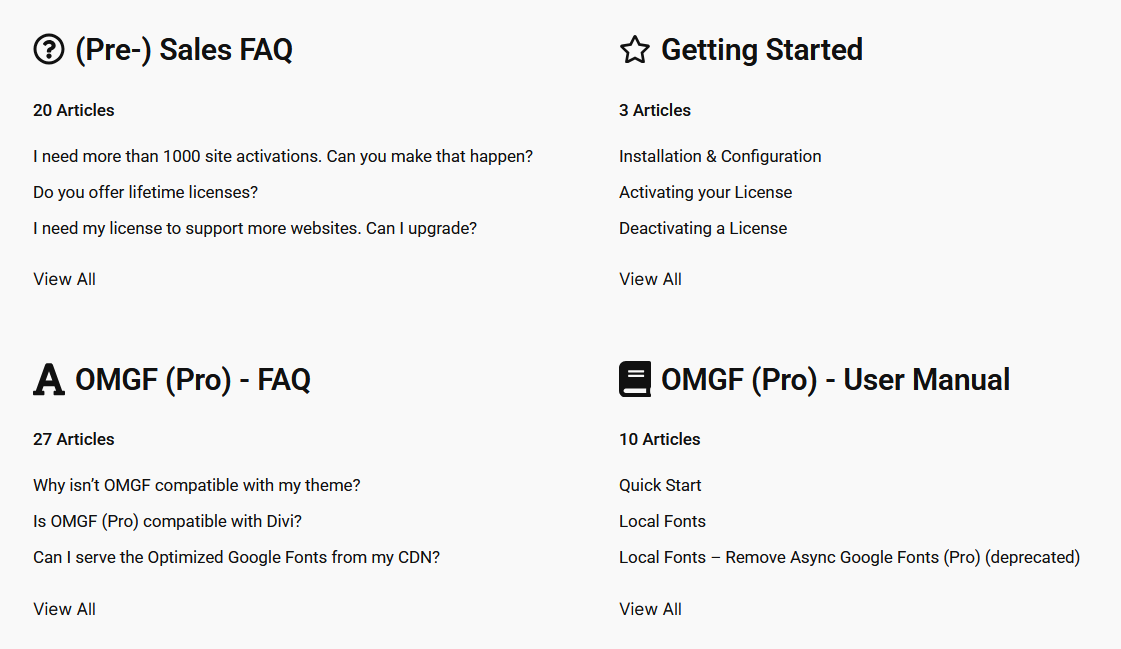
The Elementor Widget, fully named WP Help Scout Docs Widget, allows you to easily customize your Documentation’s landing page in Elementor.
Layout Options
- Customize the Grid layout’s number of columns
- Define the gap between columns/rows,
Content Options
- Display a customizable icon (per category) before, after, above and below the category.
- Show the category description
- Show the article count.
- Order by ID, name and article count (ascending or descending)
Articles Options
- Choose whether you want to display a list of articles in each category tile
- Define the max. number of articles displayed
- Choose whether you want to show excerpts of each article and define the length (in words)
- Order the articles by Title, Date or Menu Order (ascending or descending)
- Optionally display a customizable “View All” link.
And, of course, all the Styling options you’re already using in Elementor, e.g.:
- Icon color, size, spacing, background color, border, border radius
- Category (tile) background color, hover background color, padding, border, border thickness and radius, and shadow
- Title typography, color and margin,
- Count typography, color and margin
- Articles typography, color and spacing (between list items)
Shortcode (deprecated)
As of v3.1.2, the shortcode is deprecated and superseded by the the Gutenberg block, called Help Scout Docs Categories.
Upon activation, a page is created for you, containing the docs_base shortcode.
This shortcode shows a list containing all categories in your Help Scout Docs, and each list item links to the corresponding category.
Use archive instead of “base” page
If you’d much rather use your theme’s Archive template, you can disable the use of the above mentioned “base” page, by enabling the Theme & Page Builder Support option.
You shouldn’t enable this option, if you’re using the Gutenberg block. This option should only be used if you want to override the Documentation Archive, Taxonomy and/or Singular pages using a Page Builder or a custom template override.